

In the modern workplace, time recorders play a crucial role in managing employee attendance and work hours. Whether you're a small business owner or part of a large corporation, ensuring that your time recorder is functioning accurately and reset when necessary is essential for maintaining efficient operations. As a time recorder supplier, I've encountered numerous situations where customers need guidance on how to reset their time recorders. In this blog post, I'll share some comprehensive steps and tips on resetting different types of time recorders.
Understanding the Types of Time Recorders
Before diving into the reset process, it's important to understand the different types of time recorders available in the market. The most common types include mechanical time recorders, digital time recorders, and biometric time recorders.
Mechanical time recorders, also known as paper time clock, use a physical punch mechanism to record employee's arrival and departure times on a paper card. These are relatively simple devices but may require manual resetting in some cases.
Digital time recorders, on the other hand, offer more functionality. They can store data electronically, display time and attendance information, and may be connected to a computer system for further analysis. Some popular digital time recorders include the Bundy Clock For Philippines Indonesia Brazil, which is well - suited for businesses in those regions.
Biometric time recorders use fingerprint, facial recognition, or iris scanning technology to accurately record employee attendance. These devices often have more complex settings and may require technical knowledge to reset.
Resetting a Mechanical Time Recorder
Resetting a mechanical time recorder is typically a straightforward process, but it may vary slightly depending on the model.
Step 1: Gather the Necessary Tools
You'll likely need a screwdriver, as most mechanical time recorders have a protective cover that needs to be removed. Make sure you have the appropriate size screwdriver for your device.
Step 2: Remove the Cover
Locate the screws on the side or back of the time recorder and carefully remove them. Once the screws are out, gently lift off the cover to expose the internal mechanism.
Step 3: Find the Reset Button or Dial
Look for a small button or dial labeled "reset" or something similar. In some models, you may need to rotate a dial to set the correct time and date.
Step 4: Reset the Time and Date
If there's a reset button, press it firmly. If it's a dial, turn it to adjust the time and date according to your requirements. Make sure to set the correct day, month, year, hour, and minute.
Step 5: Replace the Cover
Once you've reset the time and date, put the cover back on the time recorder and secure it with the screws.
Resetting a Digital Time Recorder
Digital time recorders can be more complicated to reset due to their advanced features. Here's a general guide on how to do it:
Step 1: Access the Menu
Press the "menu" button on the time recorder to access the settings menu. The location and appearance of this button may differ depending on the model.
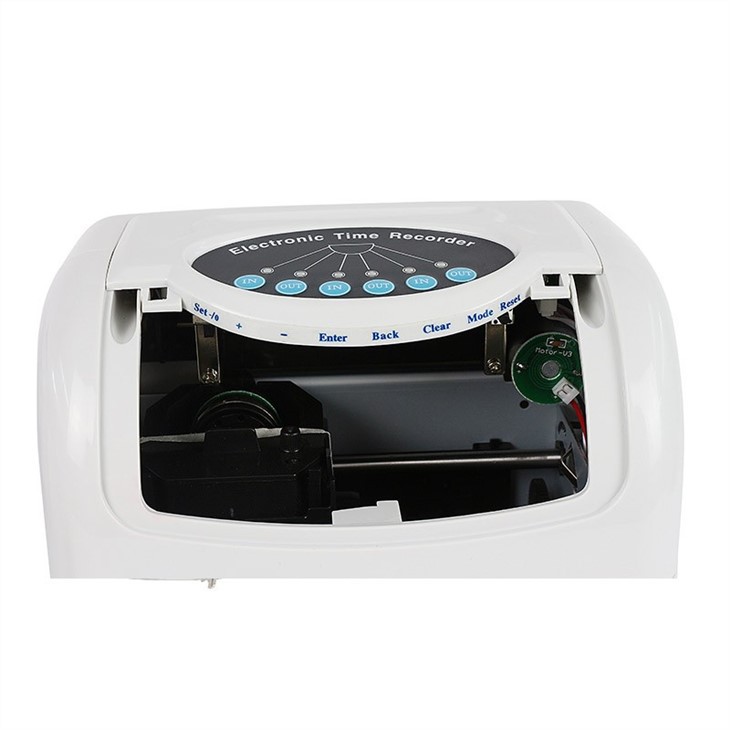

Step 2: Navigate to the Reset Option
Use the arrow keys or other navigation buttons on the device to find the "reset" or "factory reset" option in the menu. Some models may have a separate section for system settings where you can find the reset option.
Step 3: Confirm the Reset
Once you've selected the reset option, the device may prompt you to confirm your action. This is an important step, as resetting the time recorder will erase all stored data and restore it to its default settings. Make sure you've backed up any important attendance data before proceeding.
Step 4: Set the Time and Date
After the reset is complete, you'll need to set the correct time and date. Navigate to the "time and date" settings in the menu and use the navigation buttons to adjust the values.
Step 5: Configure Other Settings
Depending on your business needs, you may also need to configure other settings such as employee profiles, work schedules, and overtime rules.
Resetting a Biometric Time Recorder
Biometric time recorders require extra caution when resetting due to the sensitive personal data they store.
Step 1: Prepare for Data Loss
As with digital time recorders, resetting a biometric time recorder will erase all stored biometric data (fingerprints, facial images, etc.) and other settings. Make sure you inform your employees about the upcoming reset and that you have a backup plan in place.
Step 2: Enter the Administrator Mode
You'll need to enter the administrator mode on the biometric time recorder using the administrator password. If you don't know the password, you may need to contact the manufacturer or the supplier for assistance.
Step 3: Locate the Reset Function
In the administrator menu, find the "reset" or "factory reset" option. This option may be hidden in a sub - menu, so look carefully.
Step 4: Confirm the Reset
Once you've found the reset option, confirm your selection. The device may take a few minutes to complete the reset process.
Step 5: Re - enroll Employees
After the reset, you'll need to re - enroll all employees' biometric data. Follow the device's instructions to collect fingerprints, facial images, or iris scans, and assign them to the appropriate employee profiles.
Troubleshooting Resetting Issues
Sometimes, you may encounter issues when trying to reset a time recorder. Here are some common problems and solutions:
Problem 1: Incorrect Time After Reset
If the time is incorrect after resetting, check if you set the correct time zone and daylight saving time settings. In some cases, the device may have software glitches, and you may need to restart the device or update its firmware.
Problem 2: Cannot Access the Reset Option
If you're unable to find the reset option in the menu, refer to the device's user manual. You may also need to enter the correct administrator password or contact the manufacturer for support.
Problem 3: Data Not Erased Completely
If you suspect that some data is still stored on the device after resetting, try performing a second reset. If the problem persists, it could be a hardware issue, and you should contact a professional technician or the supplier.
Why Choose Our Time Recorders
As a reliable time recorder supplier, we offer a wide range of high - quality time recorders, including the punch time clock hours tracker android. Our products are known for their accuracy, durability, and ease of use. We also provide excellent customer support, including guidance on how to reset and maintain your time recorder. Whether you're a small startup or a large enterprise, we have the right time recorder solution for your business.
If you're interested in purchasing our time recorders or need further assistance with resetting your existing device, we encourage you to contact us for a procurement discussion. Our team of experts is ready to help you find the best time management solution for your business needs.
References
- Manufacturer's user manuals for various time recorders.
- Industry best practices for time management and attendance tracking.